
 By
By Introduction
Navigating the world of modern televisions can be confusing, especially when trying to determine if your Vizio TV is a smart model. Understanding this can unlock a plethora of entertainment options by providing access to streaming services, apps, and internet browsing. This guide will help you assess whether your Vizio TV boasts smart capabilities and offer strategies for maximizing its potential.
Understanding Vizio TV Models and Smart Capabilities
Vizio is renowned for its blend of quality and affordability. Their product range spans basic televisions to advanced smart TVs equipped with SmartCast. Most recent Vizio models incorporate smart features, granting access to popular streaming services and apps.
Comprehending your model’s capabilities is pivotal. Although older models may lack smart functionalities, most new Vizio TVs will offer a suite of smart features designed to enhance your multimedia experience.
How to Determine if Your Vizio is a Smart TV
Finding out whether your Vizio TV is a smart TV involves a few straightforward steps:
-
Check the Model Number: Locate the model number at the back of your TV or in the settings. Input this on Vizio’s website to discover your TV specifications.
-
Explore the Settings Menu: Power on your TV and examine the menu for network settings or Wi-Fi options. These options are telltale signs of smart functionality.
-
Utilize Vizio Resources: Use the model number to access product information on Vizio’s website, detailing its smart features.
By following these steps, you can confirm the smart status of your Vizio TV and start leveraging its smart features effectively.
Exploring Common Features of Vizio Smart TVs
Once you’ve established that your Vizio TV is smart, it’s essential to explore its features:
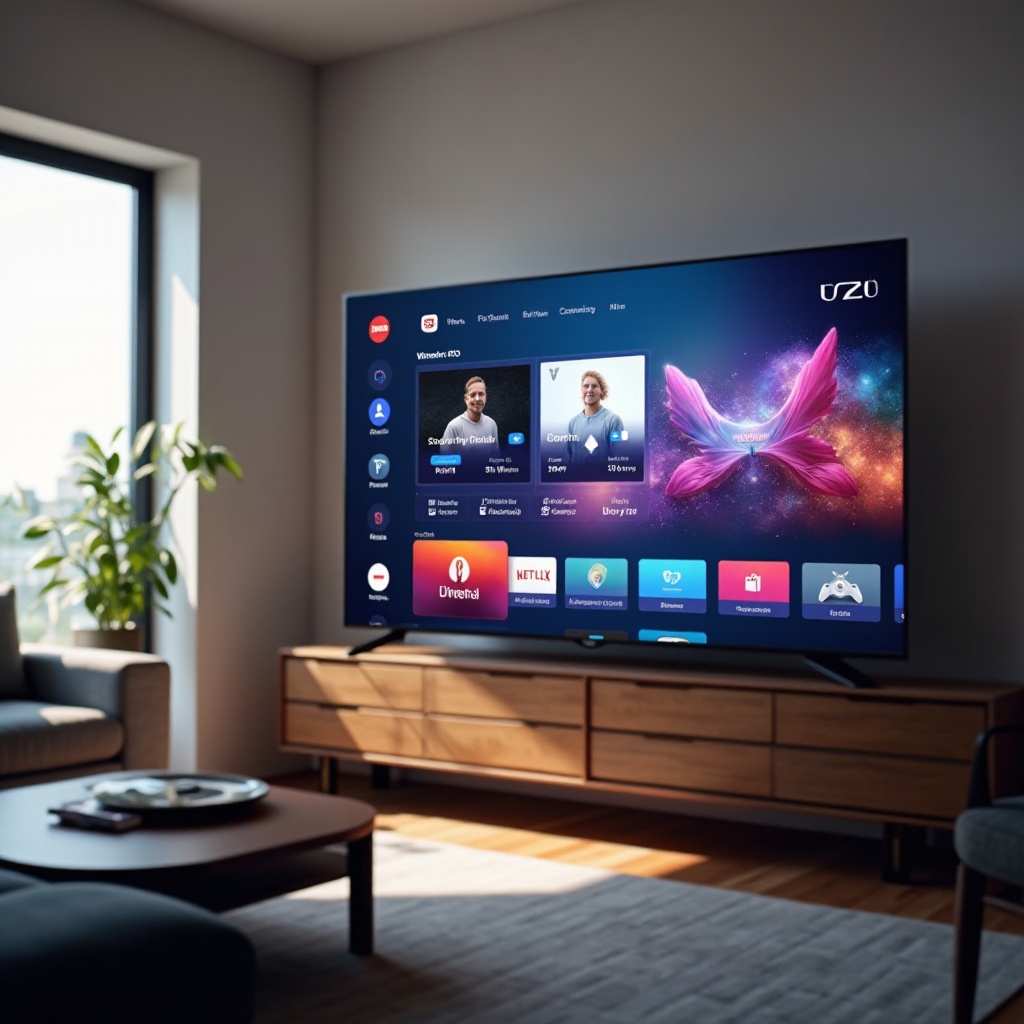
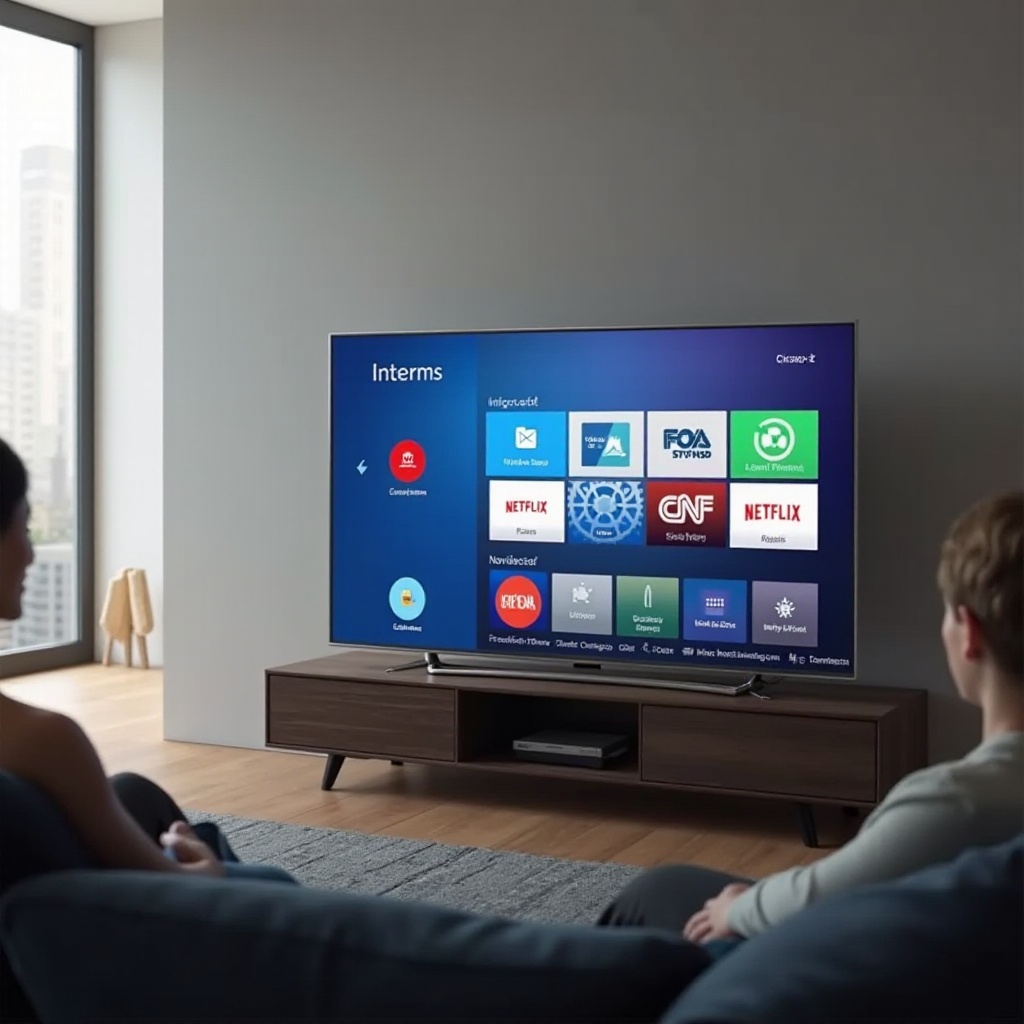
- Internet Connectivity: Enables streaming from platforms like Netflix, Amazon Prime, and YouTube directly on your TV.
- Pre-installed and Downloadable Apps: Your TV comes loaded with popular apps, and you can add more via the app store.
- Voice Control and Device Integration: Most Vizio smart TVs are compatible with voice assistants such as Alexa and Google Assistant, allowing you to control the TV with mobile devices.
Understanding these common features will help you take full advantage of what your Vizio smart TV offers, transforming your viewing habits.
Troubleshooting Your Vizio Smart TV
Even the most advanced smart TVs have occasional hiccups. Here are tips for troubleshooting your Vizio smart TV:
-
Resolving Connectivity Issues: Reset your router or TV for Wi-Fi issues and ensure your firmware is current.
-
Fixing App Performance Problems: Clear the cache for underperforming apps or reinstall them through settings.
-
Display and Audio Troubleshooting: Verify all cable connections and adjust TV settings to address picture or sound discrepancies.
With these troubleshooting steps, you can ensure your Vizio smart TV operates smoothly, avoiding disruptions in your entertainment experience.
Vizio SmartCast: A Unique Offering
SmartCast sets Vizio apart, offering a platform that simplifies streaming by casting from your phone or tablet to your TV. Unlike conventional smart TVs that rely heavily on built-in apps, SmartCast provides a flexible way to control content through mobile devices. This unique feature can significantly enhance how you interact with your TV.
By understanding and utilizing SmartCast, you can enrich your multimedia experience, enjoying the benefits of both traditional smart TV features and innovative casting functionality.
Conclusion
With the insights provided, you should now be able to identify whether your Vizio TV is a smart model and learn how to enrich its capabilities. From checking model specifications to exploring SmartCast, you’re now equipped to make the most out of your viewing experience. If you encounter additional questions, Vizio’s support services and online communities offer further guidance.
Frequently Asked Questions
How do I update my Vizio smart TV?
To update, access the settings menu, choose ‘System,’ then ‘Check for Updates,’ and follow the prompts.
Can I add new apps to my Vizio smart TV?
Yes, navigate to ‘SmartCast Home’ on your remote, browse available apps, and install them.
What should I do if my Vizio TV is not connecting to Wi-Fi?
Restart your router and TV, update the software, and re-enter Wi-Fi credentials in the network settings.