
 By
By Introduction
Picture distortion can be a major annoyance when it affects your Samsung TV viewing experience. Instead of enjoying your favorite show or movie, you might find yourself frustrated with unclear or distorted images. Understanding the root cause of the distortion is essential to fixing it effectively. This guide helps you identify the common types of picture distortion and offers actionable steps to restore your TV’s image quality.
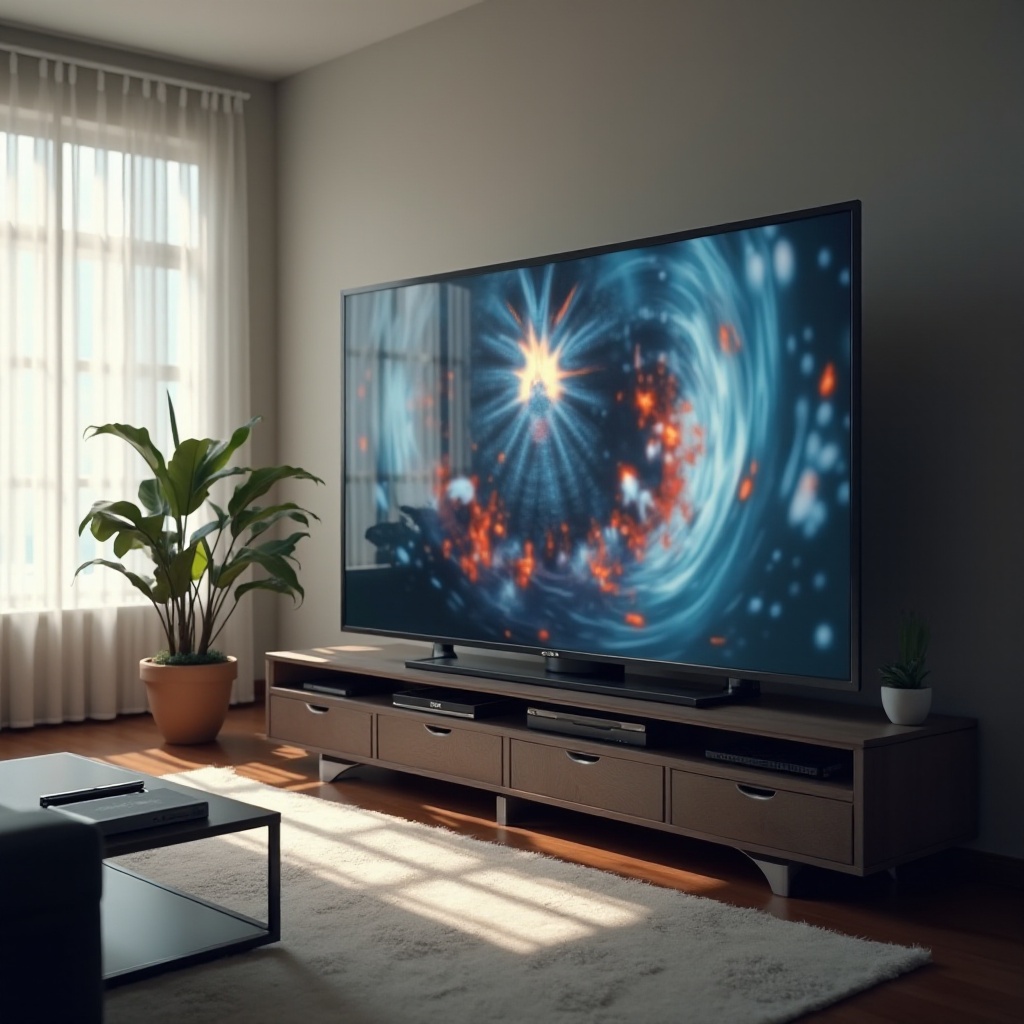
Common Types of Picture Distortion on Samsung TVs
Picture distortion on Samsung TVs arises in various forms, disrupting the clarity you expect from your device. Recognizing the type of distortion is the first step towards correcting it.
- Color Distortion: Colors appear unusual or oversaturated. This often results from incorrect TV settings or signal interference.
- Pixelation: Images look blocky or incomplete. This issue frequently stems from a weak signal or connection problems.
- Blurring: Blurry images compromise sharpness and detail, and can be a result of poor calibration or signal issues.
Each type demands a specific approach for resolution, and pinpointing the distortion type enables you to take the right corrective action.
Causes of Picture Distortion on Samsung TVs
Understanding what leads to picture distortion is crucial for applying the timely and correct solution. Common causes include:
- Cable Connection Issues: Insecure or damaged cables can distort the signal, causing image issues.
- Incorrect TV Settings: Settings such as brightness and contrast impact image clarity. Adjusting to optimal levels can resolve quality issues.
- Signal Interference: External electronic devices may interfere with your TV signal, altering your viewing quality.
- Outdated Firmware: Running on outdated firmware can impair the TV’s ability to process images correctly.
Recognizing these causes allows for targeted troubleshooting, which can swiftly improve the picture quality.
Troubleshooting Steps for Samsung TV Picture Distortion
Addressing picture distortion involves strategic steps that tackle the core of the issue:
- Check and Replace Cables: Verify that all cables are securely connected. Consider replacing any that are damaged or old.
- Adjust TV Settings: Access the settings menu to fine-tune brightness, contrast, and color. Using the reset option to revert to factory settings can be helpful.
- Update TV Firmware: Go to the settings menu and check if a firmware update is available. Keeping software up-to-date ensures smoother operation and better image processing.
Executing these steps resolves many common picture distortion problems, improving your TV’s performance significantly.
When to Seek Professional Help for Your Samsung TV
Sometimes, even after exhaustive troubleshooting, the picture distortion persists. In such cases, professional assistance becomes necessary. Reach out to Samsung support or a qualified repair service, especially if the issue involves internal components or physical damage. Before proceeding with repairs, review your warranty, which might cover specific repairs or replacements at no extra cost.
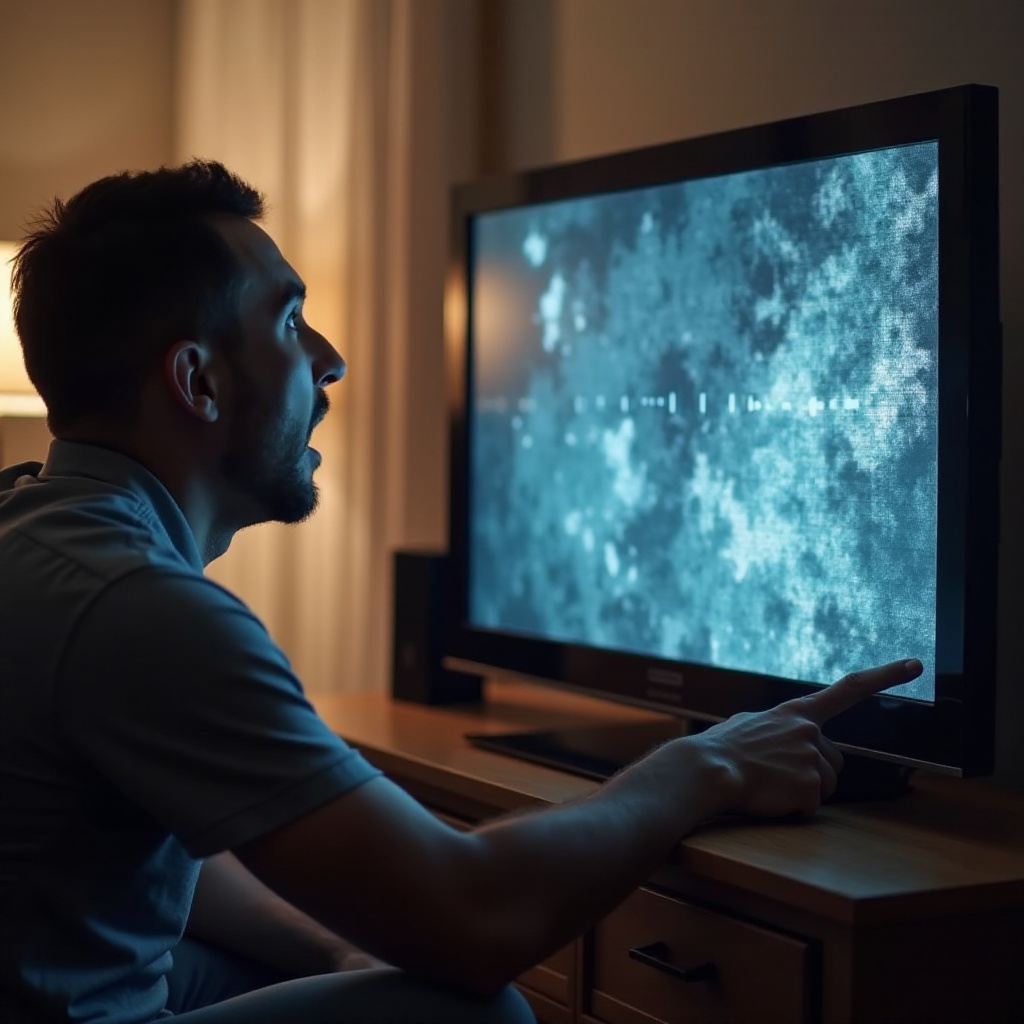
Preventative Measures for Avoiding Picture Distortion
Avoiding picture distortion is as crucial as fixing it. Simple measures can safeguard your TV’s picture quality:
- Regular Maintenance Tips: Clean your TV screen frequently and ensure cables remain connected properly.
- Keeping Software Updated: Regular firmware updates are crucial for maintaining optimal performance and preventing glitches.
By routinely following these preventative steps, you boost your TV’s longevity and ensure you consistently enjoy a clear, vibrant picture.
Conclusion
Samsung TV picture distortion can disrupt the visual experience, but it doesn’t have to be a permanent problem. With a deeper understanding of the causes and corrective measures, you can restore and maintain your TV’s picture quality. By applying regular maintenance and updates, you’ll prevent issues and ensure a seamless viewing experience.
Frequently Asked Questions
Why does my Samsung TV screen keep flickering?
Flickering may result from loose cables, incorrect settings, or nearby electronic interference. Ensure cables are secure and settings are optimized.
How do you fix a pixelated image on a Samsung TV?
Pixelation often comes from a weak signal. Check connections and signal strength. Updating firmware might also help resolve the issue.
Is picture distortion covered under my Samsung TV warranty?
Generally, warranties cover manufacturing defects, not user-inflicted damage. Review your warranty terms or consult Samsung support for precise coverage details.