
 By
By Introduction
Having trouble with your Xbox One console can derail your gaming excitement, but tackling these issues is easier than you might think. From power glitches to connectivity quarrels, addressing these common concerns swiftly ensures you can dive back into your immersive experiences without delay. This guide will navigate you through diagnosing and resolving Xbox One console issues, maintaining peak performance, and improving your overall gaming enjoyment.
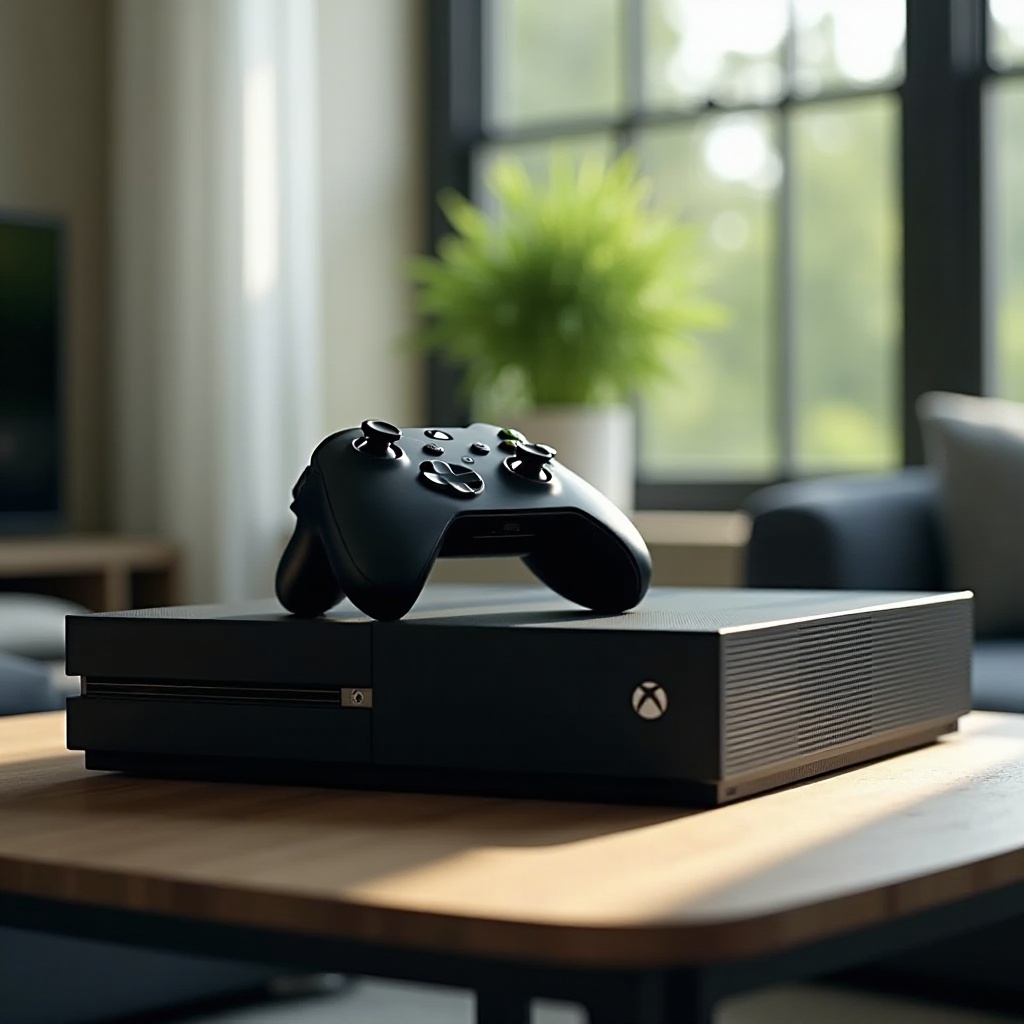
Common Xbox One Console Issues and Solutions
The Xbox One console, like any sophisticated hardware, is prone to certain issues. Understanding how to identify and mitigate these problems ensures your gaming doesn’t face unwelcome interruptions.
– Power Problems: If your console refuses to power on, first verify that the power cable is properly connected. Test the same outlet with another device to rule out faulty sockets, and consider trying another power cord. If these steps don’t work, perform a power supply reset by disconnecting all cables for 10 seconds before reattaching them.
– Disc Drive Issues: When the console struggles to read a disc, inspect it for scratches or dirt. Cleaning the disc with a microfiber cloth might restore functionality. If other discs aren’t causing issues, the disc itself could be the problem.
– Internet Connectivity Problems: For unstable Wi-Fi, ensure your Xbox sits within proper router range. Restart your console and router, and make sure no large obstacles interfere with the signal. Updating console software often resolves connectivity dilemmas.
Understanding these common fixes will allow you to resolve frequent problems quickly, but advanced troubleshooting might be needed for more persistent issues.
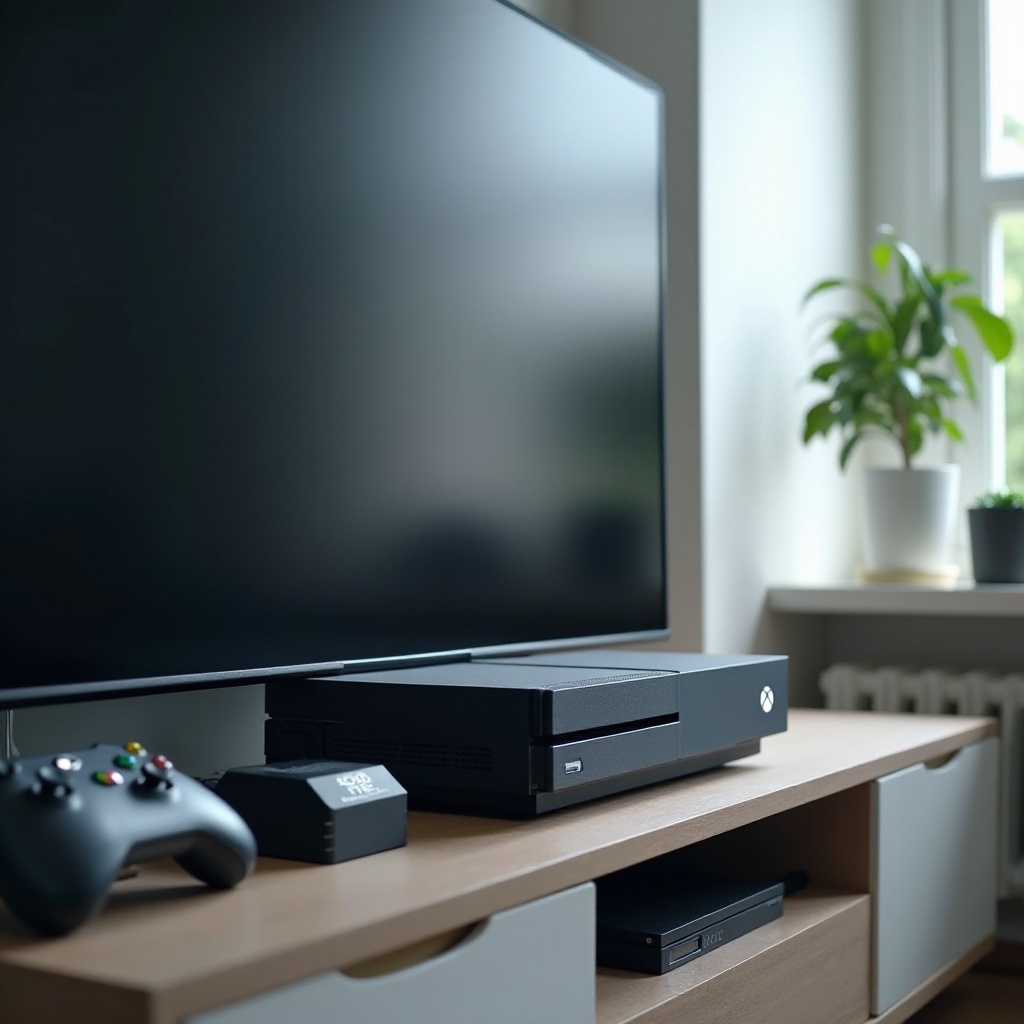
Advanced Troubleshooting Techniques
Sometimes, Xbox One issues require more in-depth troubleshooting. Approaching these situations with a step-by-step method can effectively restore your device’s functionality.
– System Update Failures: A stable internet connection is vital for successful updates. If updates fail, restart both the console and router. Perform a cache-clear by holding the power button for 10 seconds, which frequently resolves update errors.
– Game Installation Challenges: Slow installations typically indicate inadequate storage or network stress. Confirm available storage space and pause other active downloads to boost speed. Restarting your console can also help reboot the installation process.
– Controller Disconnects: For controllers that disconnect, first ensure the batteries aren’t low. Re-syncing the controller involves pressing the sync buttons on both devices. Consider updating the controller’s firmware or replacing batteries as needed.
Encountering advanced issues requires a patient, methodical approach, but resolving these problems will enhance your gaming experience and reduce future disruptions.
Maintaining Your Xbox One for Optimal Performance
Preventative maintenance can dramatically extend your Xbox One’s lifespan and performance quality, reducing the frequency of technical problems.
– Regular Cleaning and Maintenance: Dust can cause overheating. Use a soft brush or compressed air to clean vents regularly. Situate your Xbox in a ventilated area to minimize heat buildup.
– Software Updates and Their Importance: Keeping your console’s software current ensures smooth operation. Updates fix bugs and often add functionality. Set your system to update automatically or check for available updates regularly.
– Managing System Storage: A growing game library demands efficient storage management. Delete unused applications and consider external storage solutions. This practice maintains performance and prevents space-related issues.
By adopting regular maintenance habits, you ensure your console remains a reliable entertainment hub free from problematic snafus.
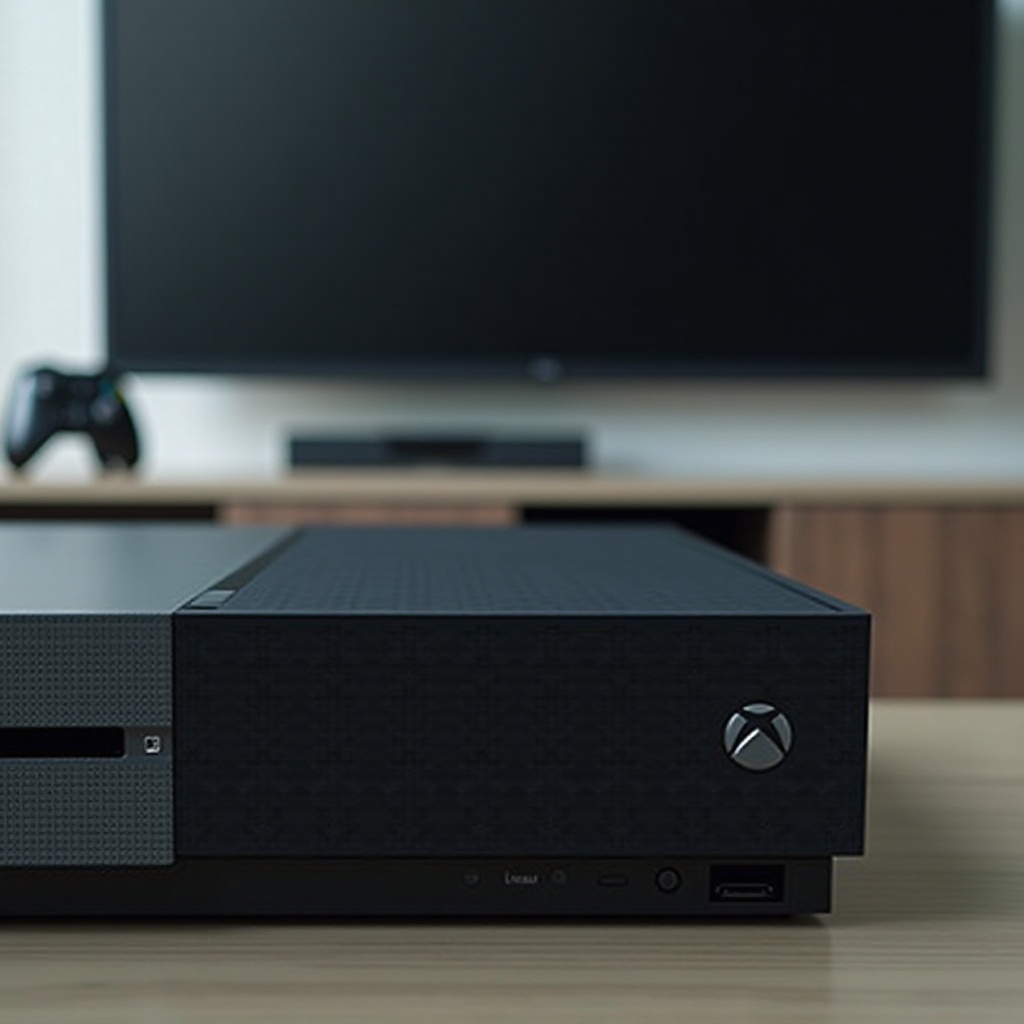
External Factors Affecting Console Performance
It’s crucial to consider external conditions impacting your Xbox One’s performance. Keeping these elements in check will reduce unnecessary complications.
– Network Environment: Optimize your internet setup to prevent connectivity troubles. Reduce network interference by limiting the number of connected devices, and use an Ethernet connection for increased stability where possible.
– Audio/Video Equipment: The quality of your display and audio gear greatly influences your gaming experience. Monitor HDMI connections regularly and fine-tune your TV settings for optimal resolution. Ensure that sound settings match your setup for an immersive auditory experience.
A deep understanding of how external factors affect your console can inspire better practices and avoid needless performance dips.
Conclusion
Addressing Xbox One console issues requires patience and the right information. By employing the strategies outlined in this guide, you can tackle challenges confidently, optimizing your overall gaming experiences. Regular maintenance and an awareness of potential issues can keep your console performing at its best, providing countless hours of enjoyment.
Frequently Asked Questions
How do I fix my Xbox One if it won’t turn on?
Ensure all cables are securely connected. Test the outlet and power supply. If necessary, perform a power reset by unplugging everything and reconnecting after 10 seconds.
What should I do if my Xbox One keeps disconnecting from Wi-Fi?
Check your router for interference. Restart your console and router. Consider using a wired connection or adjusting network settings for better stability.
How can I improve game installation times on my Xbox One?
Free up system storage, pause other downloads, and ensure a steady internet connection. Restarting the console can reset and oftentimes accelerate installation processes.