
 By
By Introduction
Gaming on the Xbox One can quickly consume available storage because modern games are larger than ever. An external hard drive provides the perfect solution, offering additional capacity for games, updates, and more. Utilizing an external hard drive begins with understanding the right format for Xbox One to ensure compatibility and optimal performance. This article delivers a step-by-step guide for selecting, setting up, and maintaining an external hard drive for your Xbox One in 2024.
Understanding Xbox One Storage Needs
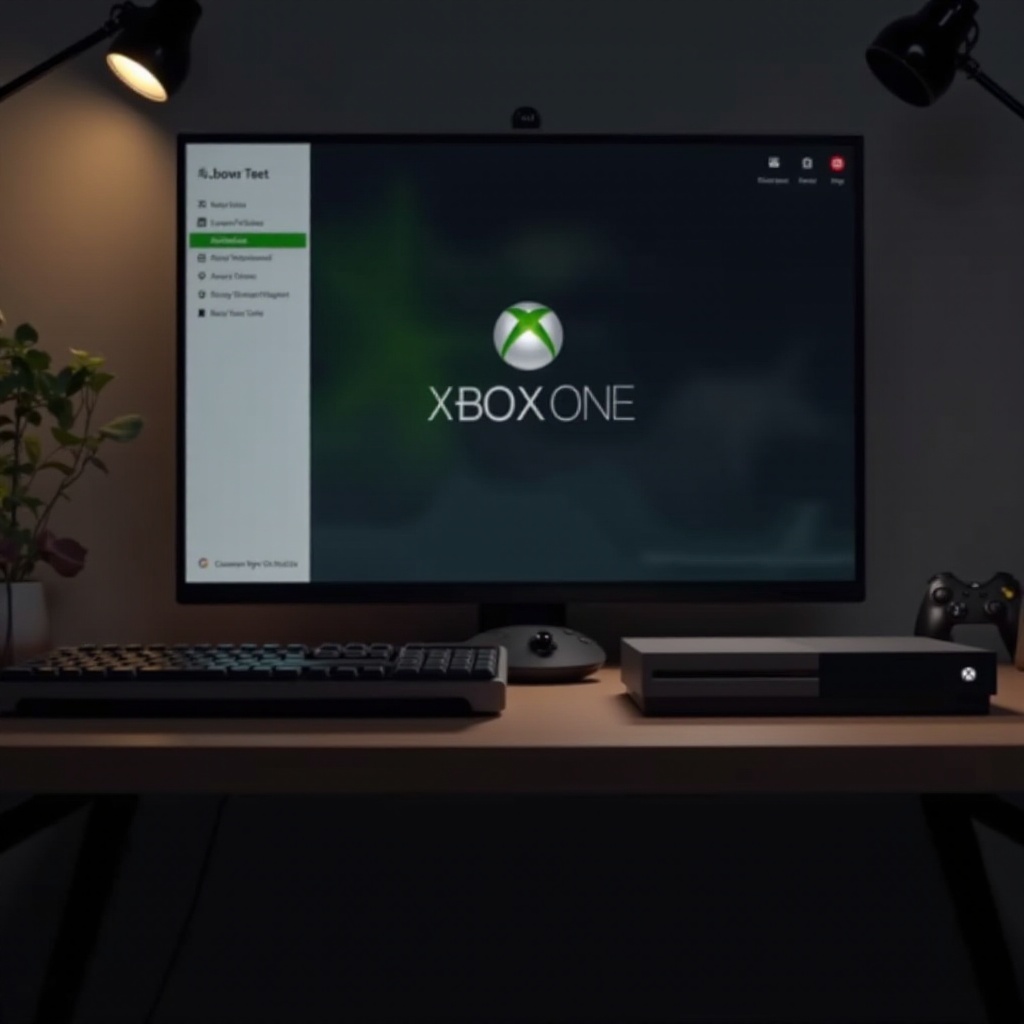
Xbox One consoles offer excellent gaming experiences but are limited by their internal storage capacity. As games and downloadable content continue to increase in size, players can find themselves facing storage constraints. This is where external hard drives become invaluable. By recognizing whether you are a casual gamer or a hardcore enthusiast, you can better assess your storage needs. Selecting the right drive will ensure you can download and maintain all your favorite content without interruption.
Choosing the Right External Hard Drive for Xbox One
Selecting an external hard drive involves ensuring it is compatible with Xbox One standards.
1. Compatibility Considerations: The hard drive should be USB 3.0 or later to support fast data transfer speeds. It should have at least 256GB of storage, although larger capacities are recommended for heavy use.
2. Recommended Models for 2024: Consider brands like Seagate, Western Digital, and Samsung, which offer models tailored for gaming. In 2024, prioritize drives with faster read/write speeds and features that enhance gaming performance.
Once you have chosen a compatible drive, you’ll ready it for formatting, a critical step to prepare it for Xbox One usage.
Preparing Your External Hard Drive for Xbox One
Before integrating your external hard drive with an Xbox One, proper preparation is essential.
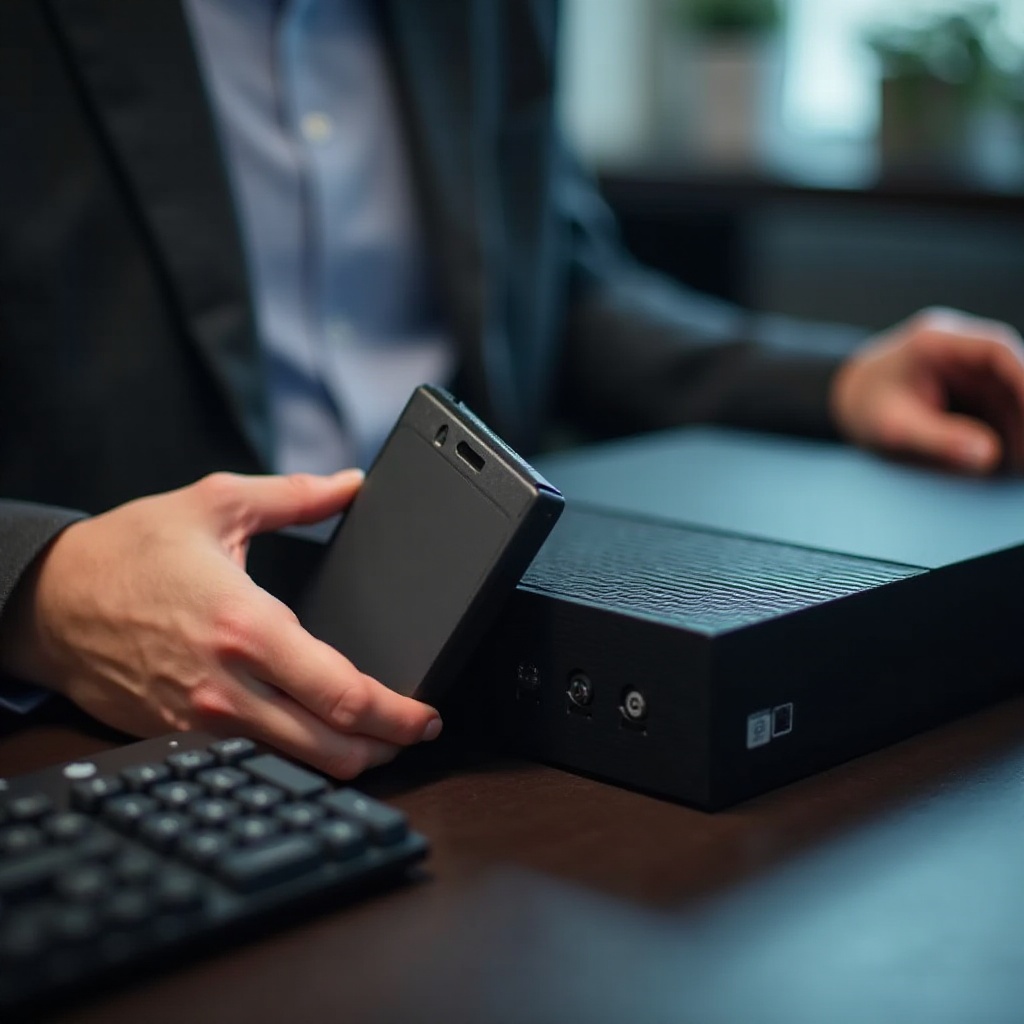
– Initial Setup Process: Unbox the hard drive and connect it to a power source if needed. Use a high-quality USB cable to attach the drive to the Xbox One’s USB port. Ensure the console identifies it as an external storage device.
– Basic Checks: Navigate to the Xbox One dashboard to access settings for the hard drive, verifying that it functions correctly. These steps precede the formatting process.
Step-by-Step Guide to Formatting Your External Hard Drive for Xbox One
To ensure that your external hard drive works efficiently with your Xbox One, follow these formatting steps:
1. Connect the external hard drive to the Xbox One using a USB cable.
2. Navigate to the Xbox One Home screen and access ‘Settings’ > ‘System’ > ‘Storage.
3. Select the connected external drive.
4. Opt for ‘Format for Games & Apps.
5. Follow the on-screen instructions to complete the format process.
These steps will configure your external hard drive for exclusive Xbox One usage, ensuring it operates smoothly. With formatting complete, the drive is ready for data transfer and gaming use.
Troubleshooting Common Formatting Issues
Despite thorough preparation, you may encounter formatting challenges. Here are solutions to navigate these common issues:
– Drive Not Recognized: Ensure the drive is inserted into a USB 3.0 port and check for any necessary firmware updates on the Xbox One.
– Incomplete Formatting: Restart both the Xbox One and external hard drive to reset the process.
– Slow Data Transfer: Verify that no other applications are running concurrently, which might affect performance.
Addressing these issues early ensures a smooth and functional setup for your external hard drive.
Benefits of Using an External Hard Drive with Xbox One
Using an external hard drive with Xbox One offers notable advantages:
– Increased Storage Capacity: Seamlessly store a larger library of games and content, preventing the need to delete existing files.
– Enhanced Game Performance: Enjoy improved load times and smoother gameplay, especially with solid-state drive options.
Incorporating an external hard drive upgrades your Xbox One setup, creating a superior gaming experience.
Conclusion
In 2024, expanding your Xbox One’s storage with an external hard drive is an excellent way to overcome storage limitations and boost performance. By carefully selecting, preparing, and formatting your drive, you can maximize your gaming library and enjoy quicker load times.
Frequently Asked Questions
What is the best file system format for Xbox One external hard drives?
Xbox One uses the NTFS file system for external hard drives, optimizing them for storing games and apps.
Can I use the same external hard drive for Xbox One and PC?
While possible through partitioning, it’s advisable to use separate drives for Xbox One and PC to avoid compatibility issues.
What should I do if my Xbox One doesn’t recognize my external hard drive?
Ensure it connects to a USB 3.0 port and verify that both the console and drive have updated firmware.