
 By
By Introduction
Bluetooth technology has transformed how we enjoy music and audio content, making wireless connections both easy and convenient. JBL Flip speakers, known for their exceptional sound quality and portability, are a favorite choice among users. Mastering how to connect Bluetooth to JBL Flip will allow you to enjoy a seamless audio experience without the hassle of wires. This detailed guide will take you through each step to ensure smooth connectivity.
Understanding Your JBL Flip Speaker
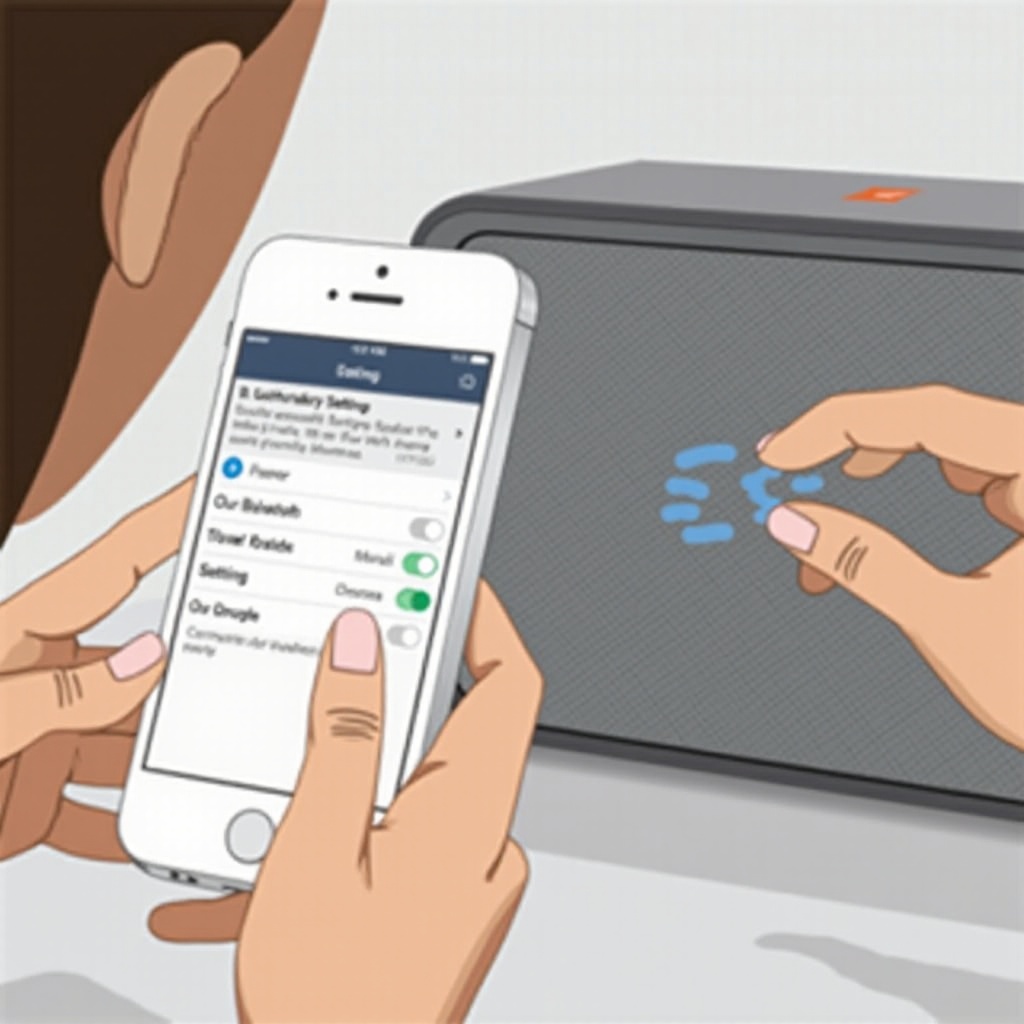
Before delving into Bluetooth connections, it’s beneficial to understand the key features of your JBL Flip speaker. These portable speakers are renowned for their robust sound and user-friendly controls. On your JBL Flip, you’ll find the power button and a dedicated Bluetooth button, which are critical for pairing with other devices. A clear understanding of these features makes the connection process more intuitive.
Preparing Your Devices
To ensure a successful connection, both your JBL Flip and the device you wish to pair it with should be adequately prepared. Follow these steps to ready your devices for pairing:
- Enable Bluetooth on your device: Navigate to the ‘Settings’ menu on your smartphone, tablet, or computer to turn on Bluetooth.
- Check the Charge on Your JBL Flip: Make sure your JBL Flip speaker is charged. A drained battery can interrupt the pairing process.
These preparatory steps are essential for a disruption-free connection. Let’s move on to pairing your JBL Flip with a Bluetooth device.
Step-by-Step Guide to Pairing Your JBL Flip
Connecting your JBL Flip to a Bluetooth-enabled device is straightforward. Here’s how you do it step-by-step:
- Turn on the JBL Flip: Press the power button on your JBL Flip. The power light will illuminate, indicating that the device is powered on.
- Enter Bluetooth Pairing Mode: Press the Bluetooth button. The LED indicator will start flashing, showing that the speaker is now discoverable to nearby devices.
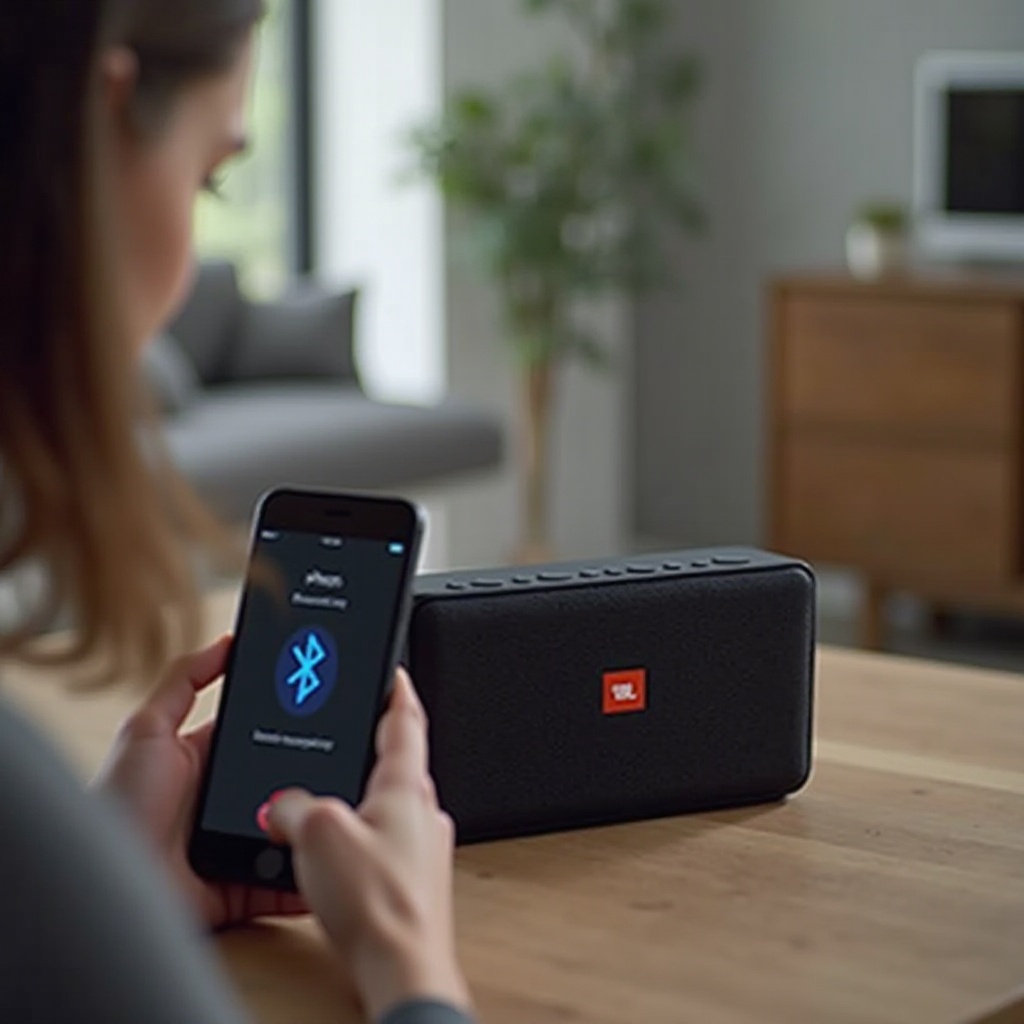
- Search for the Device: On your Bluetooth-enabled device, go to Bluetooth settings and search for available devices. Look for ‘JBL Flip’ in the list and select it.
- Connect: Once JBL Flip appears on your list, tap to connect. A notification or sound from the speaker will confirm the connection.
With these steps, your JBL Flip should now be wirelessly connected, allowing you to enjoy your music and audio content easily.
Troubleshooting Common Bluetooth Connection Issues
Sometimes, you may encounter challenges when connecting Bluetooth devices. Here are common problems and their solutions:
- Device Not Found: Make sure Bluetooth is enabled on both devices. If necessary, restart Bluetooth settings on your device.
- Connectivity Drops: Bring the devices closer to each other to minimize interference. Ensure that there are no obstacles between the devices.
- Outdated Software: Keep your device’s software and the JBL Flip firmware updated to prevent connectivity issues.
Troubleshooting these common issues ensures a stable connection. Now, let’s explore how you can enhance your JBL Flip experience.
Enhancing Your JBL Flip Experience
For optimal performance of your JBL Flip speaker, consider the following tips:
- Position your speaker in an open area to avoid obstructions that can affect sound quality.
- Use the JBL mobile app, if available, to adjust equalizer settings and improve audio!
These enhancements maximize your speaker’s potential, delivering superior audio quality.
Conclusion
Connecting your JBL Flip via Bluetooth offers an effortless way to enjoy high-quality sound wherever you are. By following the steps outlined in this guide, you can easily connect your devices and troubleshoot any issues. Now you can fully immerse yourself in your favorite tunes with the freedom and clarity that JBL Flip provides!
Frequently Asked Questions
How do I reset the Bluetooth connection on my JBL Flip?
Press and hold the Bluetooth and volume up buttons simultaneously until the device powers off. This will reset the Bluetooth settings.
Can I connect multiple devices simultaneously to the JBL Flip?
While JBL Flip can remember multiple devices, it can only connect to one device at a time actively.
What should I do if my JBL Flip speaker doesn’t appear on the device list?
Ensure the speaker is in pairing mode. If not, press the Bluetooth button again. Restart the search on your device or reboot your speaker if the issue persists.