
 By
By Updating your PlayStation 4 using a USB drive is not just a backup method, but often the most stable way to ensure a successful update. Keeping your console updated is crucial for accessing new features and maintaining optimal performance. In this guide, we’ll provide clear steps to guide you through the process seamlessly.
Introduction
When the PS4’s automatic updates fall short due to internet issues or preferences for offline updates, using a USB drive becomes invaluable. It provides a method free from interruptions and ensures you have the most current updates. This process is simple when broken down into manageable steps, helping you avoid potential obstacles and keep your system running smoothly.
Why Update Your PS4 via USB?
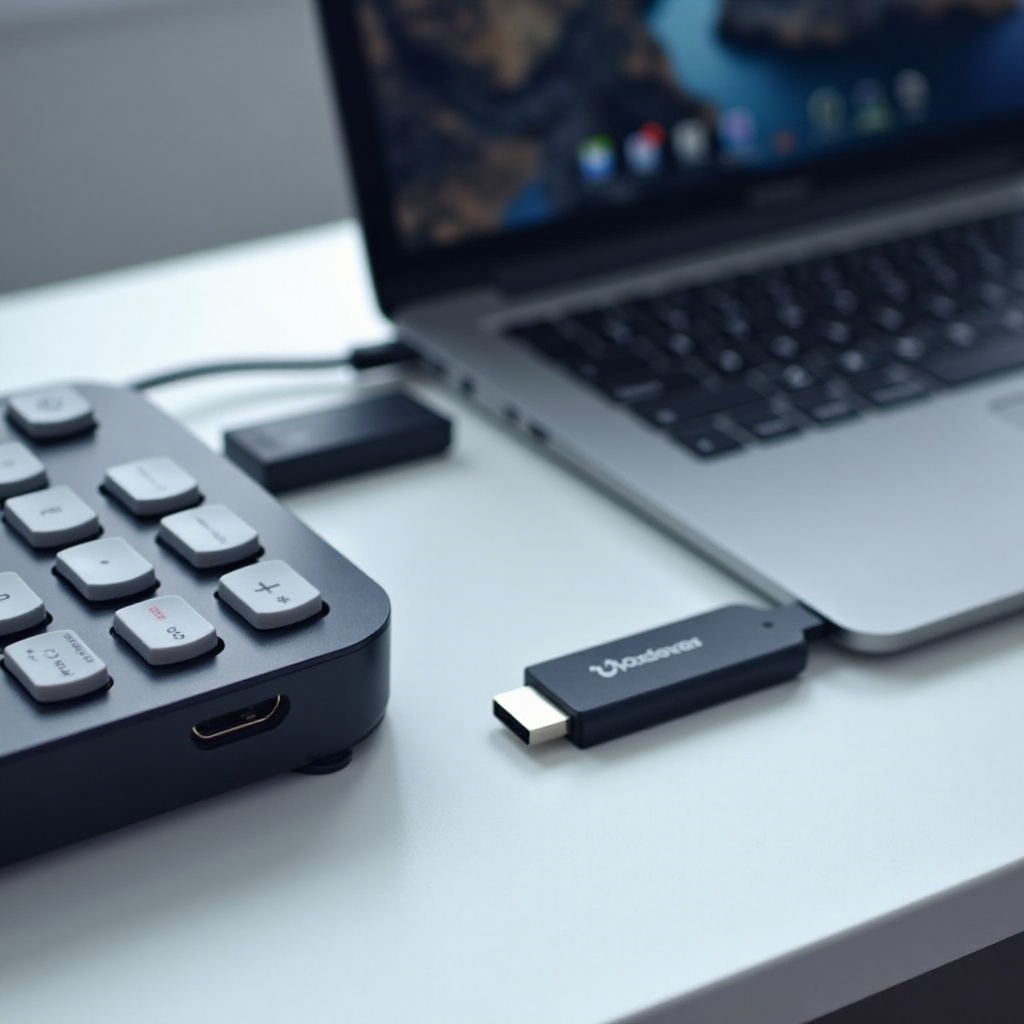
Updating via USB ensures stability and reliability, particularly when network connectivity is a struggle. Without the risk of interruptions during downloads, USB updates minimize errors. Additionally, users without constant internet access benefit from this method, as it also prevents download failures and potential system hitches. Utilizing USB not only solves connectivity woes but offers a safe path to timely software updates, keeping your console ready for any challenges.
Preparing for the Update
Before diving into the update, setting the stage for success involves a few preparatory steps.
-
Backing Up Your Data: Protect your game saves and settings by backing them up via Settings > System > Backup and Restore. Backing up preserves your data, safeguarding against any unexpected loss during the update process.
-
Selecting the Right USB Drive: Opt for a USB drive with at least 1GB of free space and USB 2.0 or 3.0 compatibility. A reputable brand ensures fewer surprises.
-
Formatting the USB Drive: Format your USB to FAT32 or exFAT by right-clicking the drive in ‘My Computer’ or ‘This PC’, choosing ‘Format’, and selecting the file system. This step is essential for the PS4 to recognize the update files.
Meticulous preparation guarantees your success in the next step—downloading the critical update files without hitches.
Downloading the Update File
Grabbing the correct system update file is vital for a successful installation.
-
Accessing the Official PlayStation Site: Head to the PlayStation official website and find the console update section to download the latest system file.
-
Ensuring File and Folder Correctness: After downloading, name the update file ‘PS4UPDATE.PUP’. Place it in a folder on the USB labeled ‘PS4’, then within another folder titled ‘UPDATE’.
-
How to Transfer the File to USB: Connect the USB to your computer, and drag the update file into the ‘UPDATE’ folder. Your path should read USB Drive > PS4 > UPDATE > ‘PS4UPDATE.PUP’. Double-check everything to prevent mishaps during installation.
With the update file securely on your USB, you are now prepared to begin the installation procedure on your PS4 console.
Installing the Update from USB
Executing the update involves specific yet simple steps that ensure optimal installation.
-
Booting Your PS4 in Safe Mode: Turn off your PS4 completely. Hold the power button until a second beep sounds—usually seven seconds—booting the system into Safe Mode.
-
Executing the Update Process: Connect the USB drive to your PS4. Choose ‘Update System Software’ from the Safe Mode menu, select ‘Update from USB Storage Device’, and follow the on-screen prompts.
-
Troubleshooting Common Installation Issues: If the process halts, verify your folder names and format. Ensure your USB meets the required formatting criteria, and attempt the process with alternative drives if issues persist.
Now that the update is installed, verify its success to ensure everything’s working correctly.
Verifying and Securing the Update
Finalizing your update involves a few checks to confirm everything is up to standard.
-
Checking Version Details: Once the PS4 restarts, go to Settings > System > System Information to ensure the system software reflects the new version.
-
Reconnecting to PlayStation Network: Restore connection for syncing settings, accessing games, and staying connected with friends by signing back into the PlayStation Network.
These final checks confirm that your update was implemented smoothly and your system is functioning optimally.
Conclusion
Updating your PS4 via USB is a dependable method that eliminates the unpredictability of direct downloads. By following these expertly crafted steps, not only do you enhance your gaming experience, but you also keep your system at the cutting-edge of gaming advancements.
Frequently Asked Questions
What if my PS4 doesn’t recognize the USB drive?
Ensure your USB drive is formatted in FAT32 or exFAT. Verify the ‘PS4’ and ‘UPDATE’ folder structure is correct and that the update file is named properly.
How can I fix errors during the update process?
Restart your console and recheck the file path on the USB. Try using another USB drive compliant with the specified requirements if problems persist.
Is it necessary to update all games individually after a system update?
No, system updates do not automatically update games. Upon launching each game, check for updates, which can then be downloaded and installed individually.