
 By
By Introduction
Is your Lexmark printer refusing to print when you need it most? This situation can be frustrating, especially when printing crucial documents or meeting deadlines. Many users encounter issues with their Lexmark printers, ranging from software glitches to connection problems. This comprehensive guide walks you through identifying common issues and troubleshooting steps to get your Lexmark printer back on track. Whether you’re dealing with a network issue or a driver problem, this guide has you covered.
Understanding Common Lexmark Printer Issues
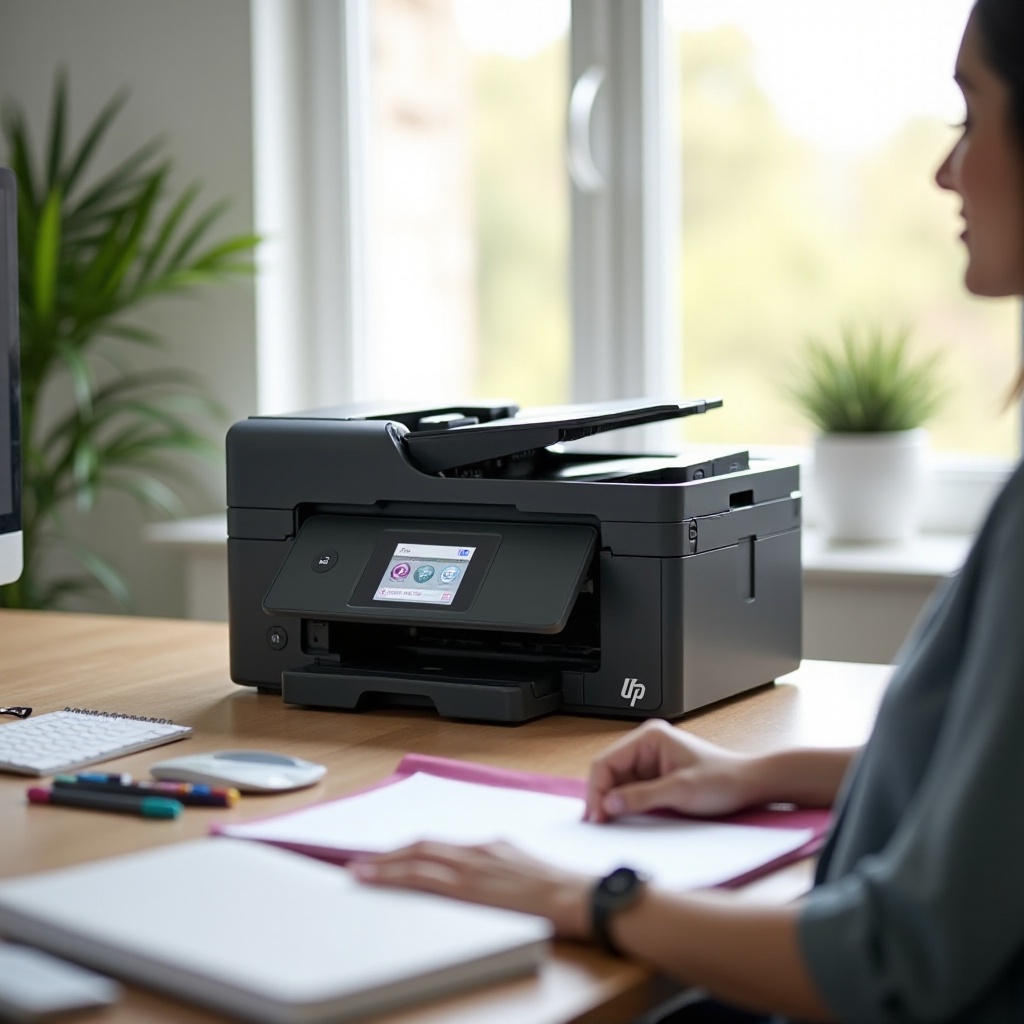
Lexmark printers are generally reliable, but like any technology, they can develop problems. The primary issues usually involve connection interruptions, software glitches, and physical obstructions like paper jams. Recognizing the source of the problem is crucial to applying the right solution.
-
Connection Problems: Printers may lose connection due to loose cables or unstable Wi-Fi. Make sure all connections are secure and your wireless network is stable.
-
Driver and Software Glitches: Outdated or corrupted drivers often lead to printing problems. Checking for updates or reinstalling drivers can frequently resolve these issues.
-
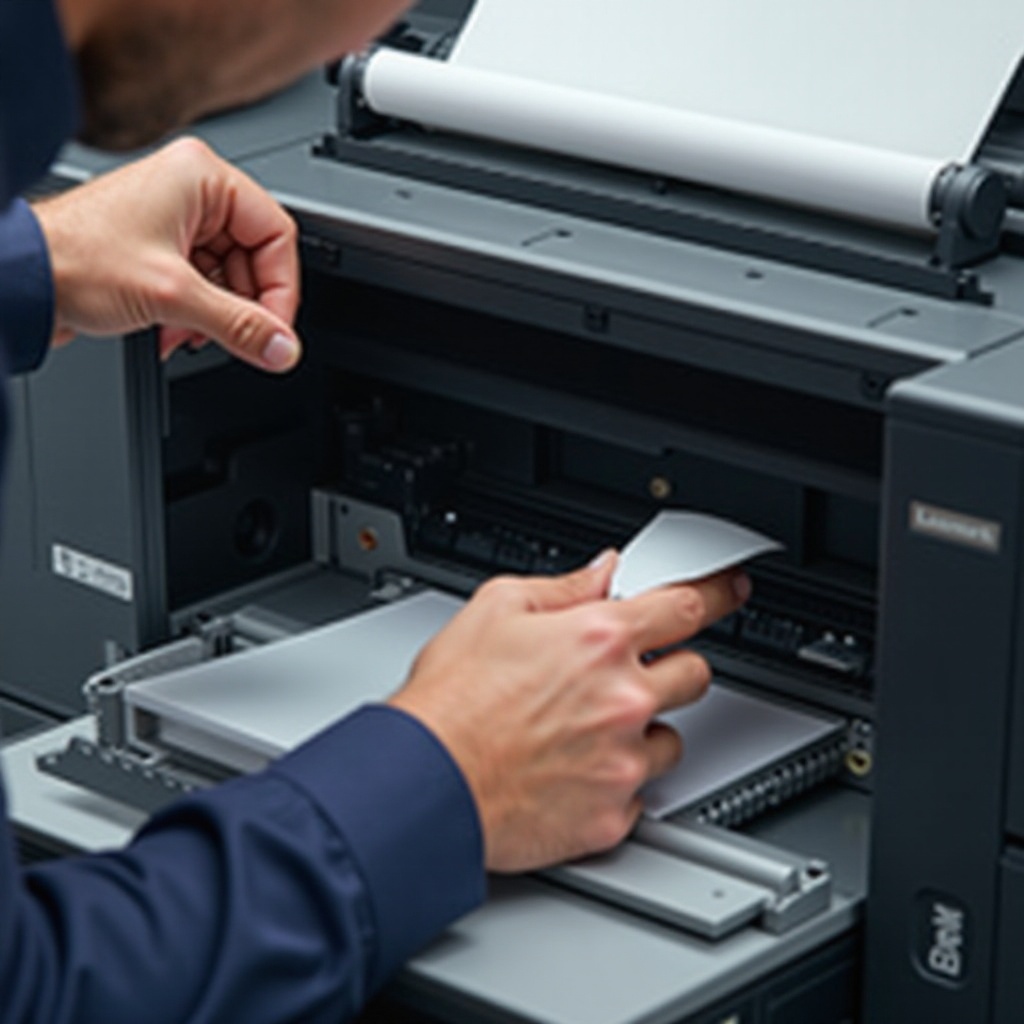
Paper Jams and Feed Errors: These are common disruptions. Ensuring that paper is correctly loaded and using the right type can prevent jams.
Understanding these potential issues assists in diagnosing what might be wrong with your Lexmark printer, allowing for a more targeted troubleshooting approach.
Step-by-Step Troubleshooting Guide
Once you’ve pinpointed potential issues, it’s time to troubleshoot effectively:
-
Verify Physical Connections and Power: Ensure your printer is properly plugged in and powered on. Check all cables and power connections to confirm they are secure.
-
Check Wi-Fi and Network Settings: If your printer connects wirelessly, verify it’s on the correct network. Restart your router and reconnect the printer to ensure a stable connection.
-
Replace Low or Empty Cartridges: Lexmark printers might not print if the ink or toner is low. Check cartridge levels and replace or refill as necessary.
Moving to software issues involves ensuring your Lexmark printer is set up for optimal performance.
Resolving Software and Driver Issues
Software-related problems present another obstacle. Here’s how you can tackle these concerns effectively:
-
Update or Reinstall Printer Drivers: Outdated drivers can contribute to printing issues. Visit Lexmark’s official website to download the latest drivers for your model. Follow the installation instructions thoroughly.
-
Configure Print Spooler Settings: Resetting the print spooler can resolve issues with stuck jobs. Navigate to your computer’s services menu, locate the Print Spooler service, and restart it.
These strategies ensure smooth printer operations from a software perspective. Regular updates and checks can prevent future problems.

Maintenance and Preventive Measures for Lexmark Printers
Maintaining your printer can circumvent many issues before they start. Here are some preventive measures:
-
Regular Cleaning Routine: Dust and debris accumulation can cause jams and other problems. Regularly clean your printer, focusing on the paper feed and cartridge areas.
-
Manage Print Queue Efficiently: Monitor the print queue for jobs that can prevent new print commands. Regularly clearing the queue helps sustain printer efficiency.
Connecting your troubleshooting knowledge with routine maintenance ensures your Lexmark printer stays in peak condition.
When to Contact Lexmark Support
If all attempts at fixing the printer fail, it might be time to contact Lexmark support. Professional help can diagnose deeper, unsolvable issues. Ensure you have your printer model and details of the issue ready to expedite the service.
Conclusion
Resolving a Lexmark printer issue can be straightforward with the right information. By identifying common issues, applying troubleshooting techniques, and conducting regular maintenance, you can save yourself from frustration and downtime. Regular checks and proactive maintenance will keep your printer efficient and reliable.
Frequently Asked Questions
Why is my Lexmark printer showing as offline?
Check all connections and restart both the printer and your computer to resolve this common issue.
How do I clear a paper jam in my Lexmark printer?
Turn off the printer and gently remove any jammed paper. Refer to the user manual for detailed instructions specific to your model.
What should I do if my Lexmark printer prints blank pages?
Ensure there is enough ink or toner, and perform a print head cleaning through the printer’s maintenance menu.