
 By
By Introduction
Connecting cable to your Samsung Smart TV opens up various entertainment options, seamlessly blending traditional television with smart technology features. This guide provides clear steps for setting up your cable connection, troubleshooting common issues, and enhancing your viewing experience using Samsung Smart TV functionalities.
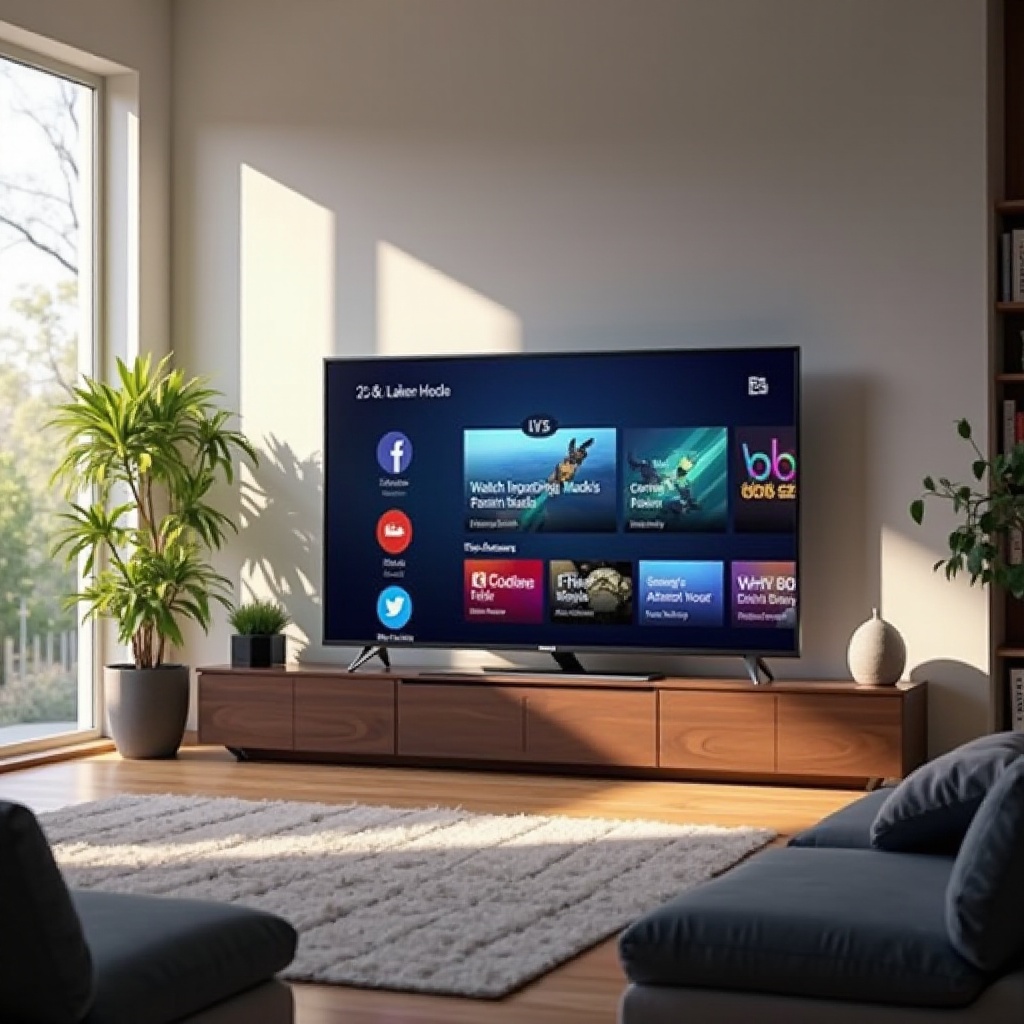
Understanding Your Samsung Smart TV
Before making connections, a solid understanding of your Samsung Smart TV’s features is crucial. The Smart Hub centralizes access to apps and services, facilitating cable integration.
Key Features of Samsung Smart TVs
Samsung Smart TVs come with innovations to elevate your viewing experience:
– Smart Hub: Centralizes your apps and services, simplifying navigation.
– Voice Control: Enables interaction through Bixby, Google Assistant, or Alexa, providing hands-free control.
– Multiple Connectivity Options: Featuring HDMI ports, USB slots, and wireless capabilities, allowing various setups.
Navigating the Smart Hub
Navigating your Smart Hub efficiently will make accessing cable channels easier. Stay updated with regular software updates for improved functionality and application performance, keeping your TV’s security robust.
Preparing to Connect Cable TV
With features understood, preparing for a successful connection involves verifying cable types and understanding appropriate ports.
Identifying Compatible Cables and Ports
Ensure compatible cables are on hand:
– HDMI Cable: Delivers high-definition audio and video signals.
– Coaxial Cable: Commonly used for standard cable connections.
Necessary Equipment for Setup
Besides cables, confirm you have:
– A cable box from your service provider.
– The Samsung TV remote.
– Access to functional power outlets for uninterrupted setup.
Connecting Cable to Your Samsung Smart TV
Prepared with your equipment, it’s time for the physical setup of your cable connection.
Step-by-Step HDMI Cable Connection
- Locate the HDMI port on your Samsung TV.
- Connect one end of the HDMI cable to the TV’s HDMI port.
- Attach the other end to the HDMI output on your cable box.
- Power on the TV and select the corresponding HDMI input using the ‘Source’ button on your remote.
Coaxial Cable Setup Process
- Attach one end of the coaxial cable to the RF input on your TV.
- Connect the opposite end to the output on your cable box.
- Switch the TV to TV input via the remote, then initiate a channel scan.
Configuring and Organizing Channels
Once connected, configuring your TV settings helps in accessing and organizing channels efficiently.
Accessing the TV Settings
- Use the Samsung remote to navigate to ‘Settings’.
- Choose ‘Broadcasting’, then proceed to ‘Auto Program’.
Auto-Tuning Channels and Customization
Follow these steps to streamline and customize your channels:
1. Initiate Auto Program to detect available channels.
2. Reorganize your channel list by editing out undesired channels and prioritizing favorites.
3. Save your configurations to ensure settings are maintained.
Troubleshooting Common Connection Issues
If issues arise, handling them swiftly is key to maintaining optimal viewing.
Resolving No-Signal Errors
- Confirm that all cable connections are tight and secure.
- Resolve issues by cycling the TV’s power and reinserting cables.
- Ensure the cable box is operational.
Fixing Picture and Sound Quality Problems
- Inspect the HDMI or coaxial cable for visible defects or damage.
- Adjust picture settings within the TV’s Settings menu.
- Verify sound settings and explore alternative speakers if needed.
Enhancing Your Viewing Experience
Once functional, explore Samsung’s additional features to maximize your TV’s potential.
Using Samsung Smart Hub Apps
- Access and install apps like Netflix or Hulu to augment cable content.
- Utilize widgets for news, weather, and more to broaden content possibilities.
Integrating Streaming Services with Cable
- Use voice commands to seamlessly toggle between cable and apps.
- Synchronize cable and streaming services for a personalized video library.
Conclusion
Configuring cable on your Samsung Smart TV is an easy, impactful way to elevate your entertainment setup. Understanding features, efficiently connecting, and personalizing your setup will help you enjoy a cohesive mix of live TV and streaming services.
Frequently Asked Questions
How do I update my Samsung Smart TV software?
Go to ‘Settings’, select ‘Support’, then ‘Software Update’, and choose ‘Update Now’. Ensure your TV is connected to the internet for a smooth update.
Can I watch cable using Wi-Fi on my Samsung Smart TV?
Traditional cable connections require wires, but certain apps may offer cable channel streaming over Wi-Fi with valid subscriptions.
What should I do if my TV doesn’t recognize the cable connection?
First, check that the cable box is on. Verify all connections and try another HDMI port. If issues persist, unplug the TV for a few minutes before reconnecting.