
 By
By Introduction
Finding your computer screen completely white can be a distressing experience. Before jumping to conclusions about potential hardware damage, it’s important to understand that this issue can be caused by various, often minor, factors. These can include hardware malfunctions, software glitches, and operating system problems. Let’s explore how to identify the core issue and walk through some practical steps to resolve the problem and get your computer running smoothly again.

Understanding the White Screen Issue
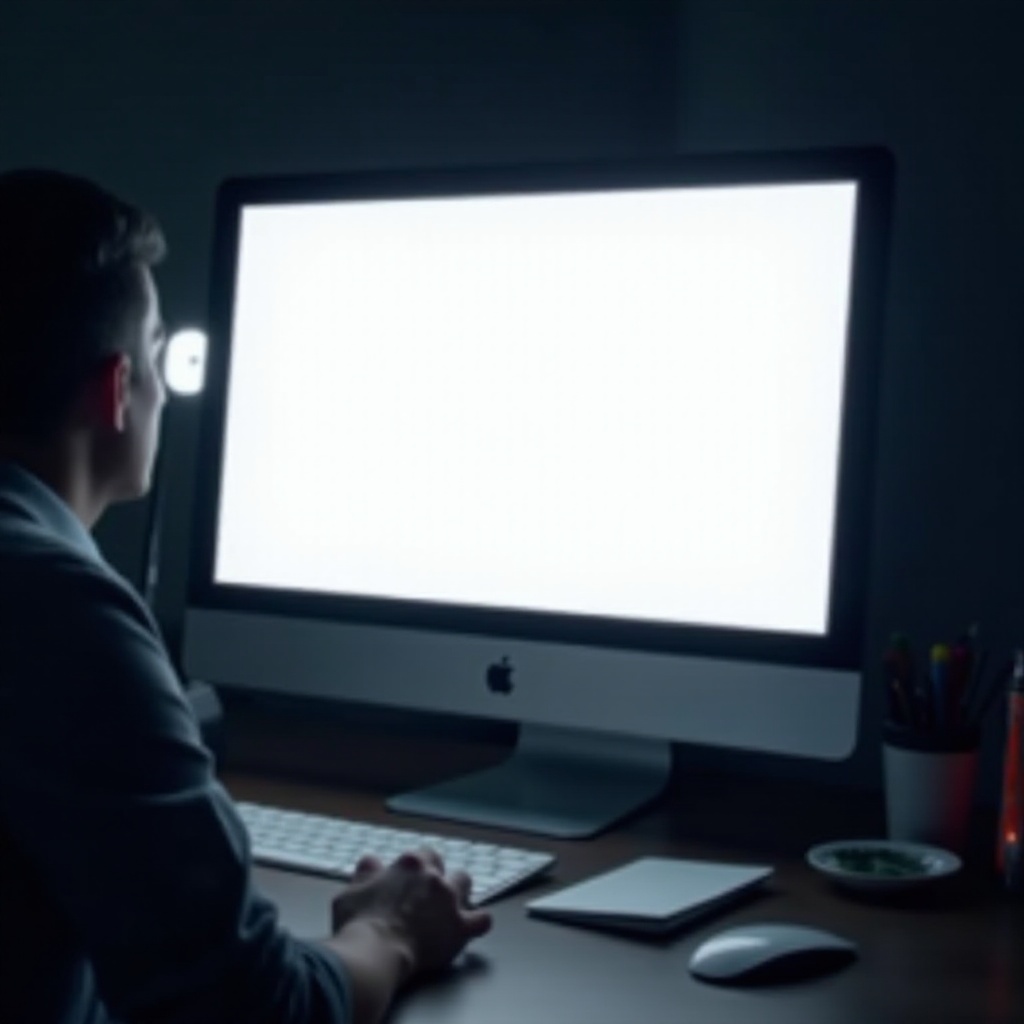
Recognizing the symptoms of a white screen issue is the first step toward resolving it. Unlike other display problems, a white screen typically shows no error messages or visible interfaces, just a blank white display. This problem might occur suddenly during use, or as you start up your computer.
To distinguish a white screen from similar display issues, look for these characteristics:
– The screen turns entirely white without any text or graphics.
– The white display appears intermittently or upon startup.
– No response to keyboard or mouse inputs except maybe the cursor.
Once we understand these symptoms, we can focus on identifying the underlying causes that lead to this frustrating issue.
Common Causes of a White Screen
The causes of a white screen can generally be grouped into three categories: hardware issues, software problems, and operating system errors. Identifying which category your problem falls into will guide you towards the most effective solution.
-
Hardware-Related Causes:
Faulty or loose connections, a malfunctioning graphics card, or overheating components can disrupt display settings, leading to a white screen. Ensuring all hardware components are properly connected and functioning is crucial. -
Software-Related Causes:
Outdated or corrupted drivers, software conflicts, or incompatible applications can affect your computer’s ability to render the display correctly. Installing the latest software updates can often resolve these issues. -
Operating System Errors:
Issues within the OS, including corrupted system files or incorrect settings, can also result in a white screen. Keeping your OS updated is key to avoiding these complications.
Having identified these categories, we can proceed with a structured approach to troubleshoot the problem effectively.
Step-by-Step Troubleshooting Guide
With the knowledge of potential causes, we can methodically troubleshoot to isolate and resolve the white screen issue.
- Initial Checks to Perform:
- Restart your computer to see if the issue is temporary.
- Ensure all cables connecting your monitor and computer are securely attached.
-
Try connecting an external monitor to check if the issue is isolated to your primary display.
-
Advanced Hardware Diagnostics:
- Inspect internal connections if comfortable. Loose or damaged cables inside your computer might be the issue.
-
Test another display or swap video cables, which can help identify where the fault lies.
-
Software and Driver Troubleshooting:
- Boot in Safe Mode, which disables non-essential drivers and can help identify driver-related issues.
- Update or reinstall graphics drivers by visiting the manufacturer’s site for the latest version.
- Roll back any recent updates that coincided with the emergence of the white screen to revert your settings to a known stable state.
These troubleshooting steps should be approached in order, from simple to complex, to efficiently resolve the problem.
Practical Solutions to Resolve the White Screen
After thorough troubleshooting, reparation efforts can be directed towards specific solutions for more persistent problems.
- Fixing Common Hardware Problems:
- Secure all connections and replace any damaged cables.
-
Seek professional assessment for persistent hardware issues to determine if replacements are necessary.
-
Adjusting Software and Driver Configurations:
- Remove any applications that seem incompatible with your system.
- Utilize system restore features to return to prior programming configurations if software changes created the issue.
These targeted approaches should mitigate the problem effectively, preventing further disruptions.
When to Seek Professional Help
There are times when DIY fixes just aren’t enough. Knowing when to call a pro is vital.
- If the white screen persists despite exhaustive troubleshooting.
- Visible damage to components or failure during recommended hardware checks.
- When specialized tools or technical knowledge are necessary.
Professional help ensures a thorough diagnosis and corrects issues that are beyond basic fixes. Always choose a repair service known for reliability and expertise.

Conclusion
In conclusion, the mysterious white screen can often be rectified through a systematic approach of understanding, identifying, and resolving its underlying causes. From hardware tweaks to software updates and professional consultations, resolving this issue is within reach. Regular maintenance and staying informed about potential causes can help prevent such hassles in the future, providing a smoother, more reliable computing experience.
Frequently Asked Questions
Can a white screen be caused by a virus or malware?
Yes, malware can affect display settings, but it isn’t the most common cause. Running a security scan can eliminate this possibility.
Will a system restore fix a white screen issue?
It can, especially if the issue arose after recent updates or installations. Restoring to an earlier point can revert to stable configurations.
How can I prevent a white screen from happening again?
Keep your system and drivers updated, maintain hardware health, and avoid installing incompatible software to prevent future issues.